1Get the file from LibraryThing
In LibraryThing, choose “Export” and download the CSV or TSV file. Put it where you can find it on the device.
2Open the file in DAS MUSEUM
Choose “Import table” and the file. The app recognizes the LibraryThing template from the header row.
3Check the columns
Title, authors with role, ISBN*, publisher, edition, binding, pages, date, language, dimensions, tags, collection, acquisition date, source, lending and rating are matched. The rest is kept under “More details”.
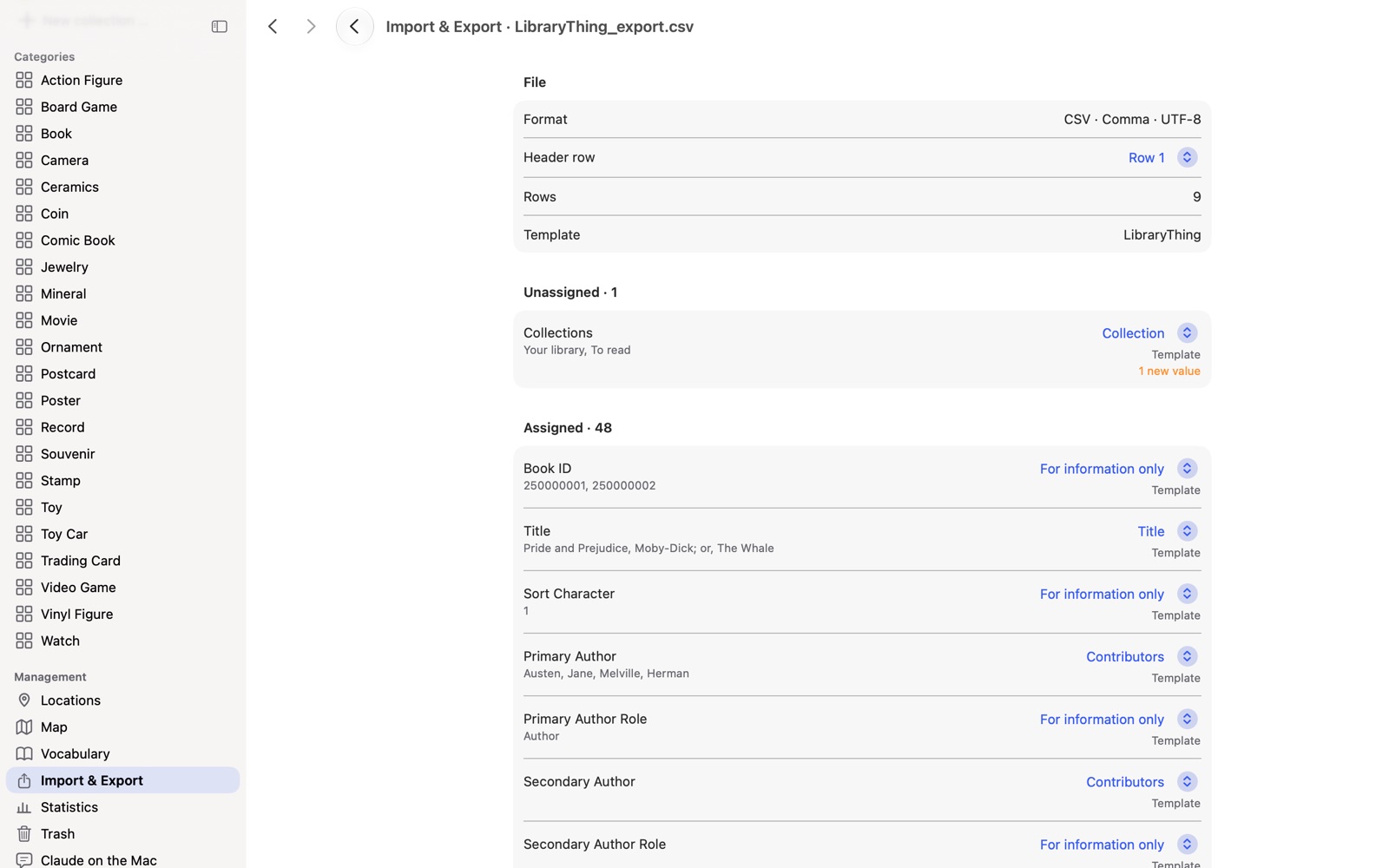
4Review the result and adopt it
Every row is a draft. You confirm new collections before they are created.
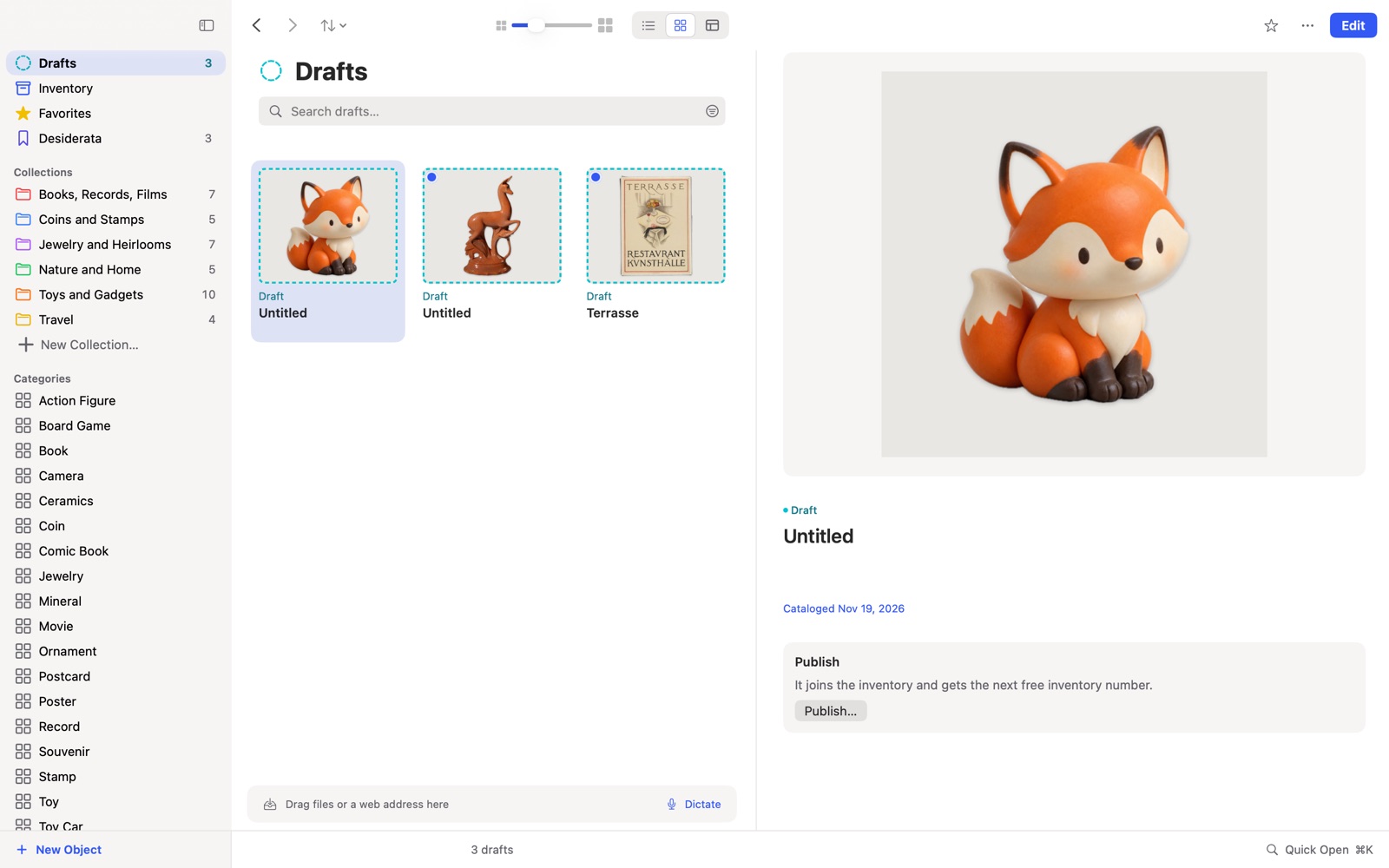
5Add the photos
Pictures are not in the file. “Load images from the web” fetches them when you press the button, and until then the app stays offline.
Frequently asked questions
What happens to half stars? A half-star rating such as 4.5 cannot be read by the app. It drops out and is counted in the check before you adopt anything.
What becomes of my private comments? “Private Comment” becomes your private notes. Rating, reading date and lending never appear in the public text.
Do I need a collection called “Your library”? No, the app does not create it. It does not count as a collection.
* ISBN belongs to the Books add-on package.
Related: All ways to switch, Libib
LibraryThing is a trademark of its owner. DAS MUSEUM is not affiliated with this provider.