1Export the data as a CSV file
CatalogIt exports your data as a CSV file. Save the file where you will find it again, for example in iCloud Drive.
2Open the file in DAS MUSEUM
Choose “Import table” and tap the file. There is no fixed template for CatalogIt, so you match the columns yourself.
3Match the columns
You tell DAS MUSEUM which column is the title, which the date, which the note. Whatever finds no place is kept under “More details from the import”.
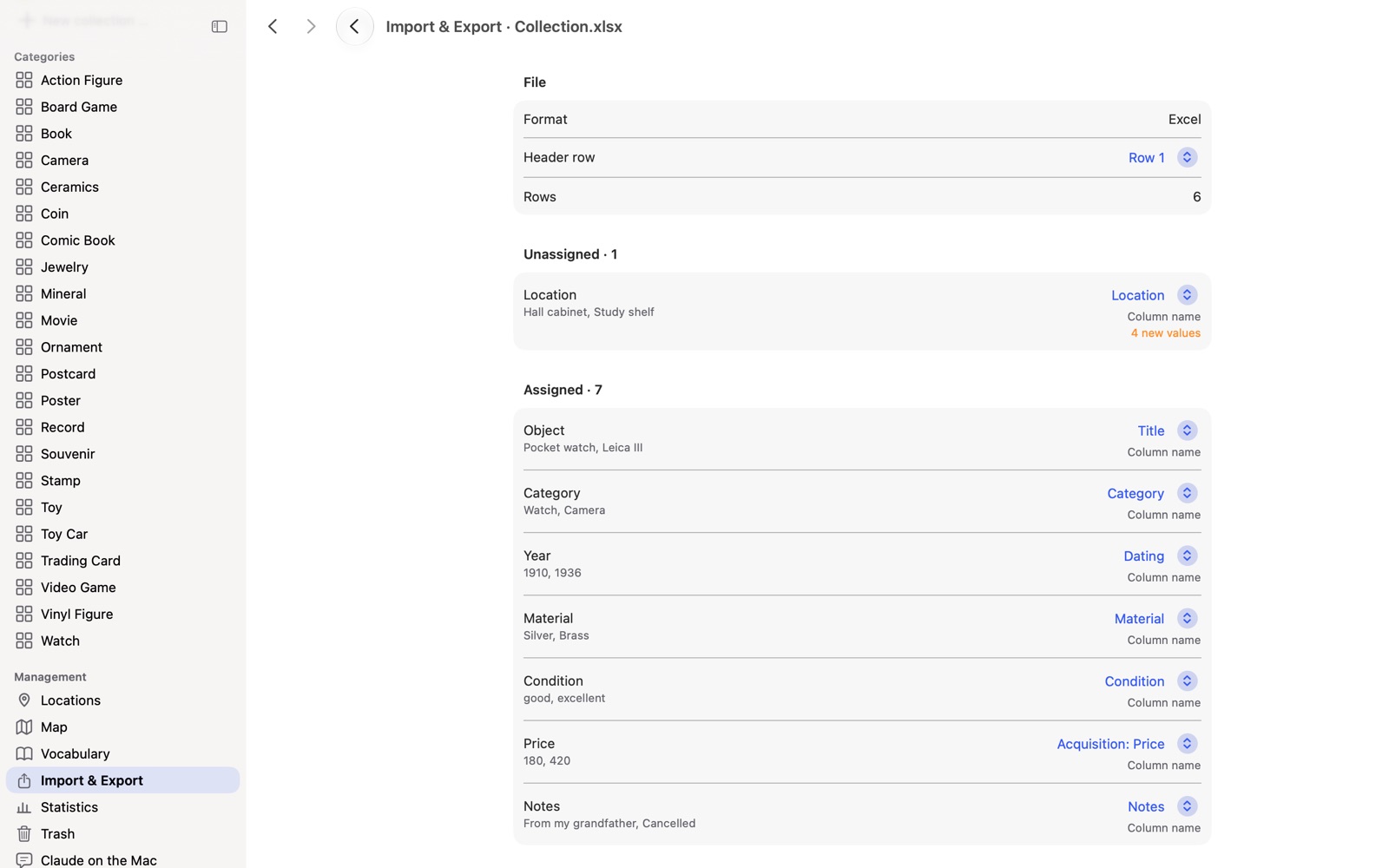
4Review the result and adopt it
Every row becomes a draft. You see everything before adopting, and you can discard individual drafts.
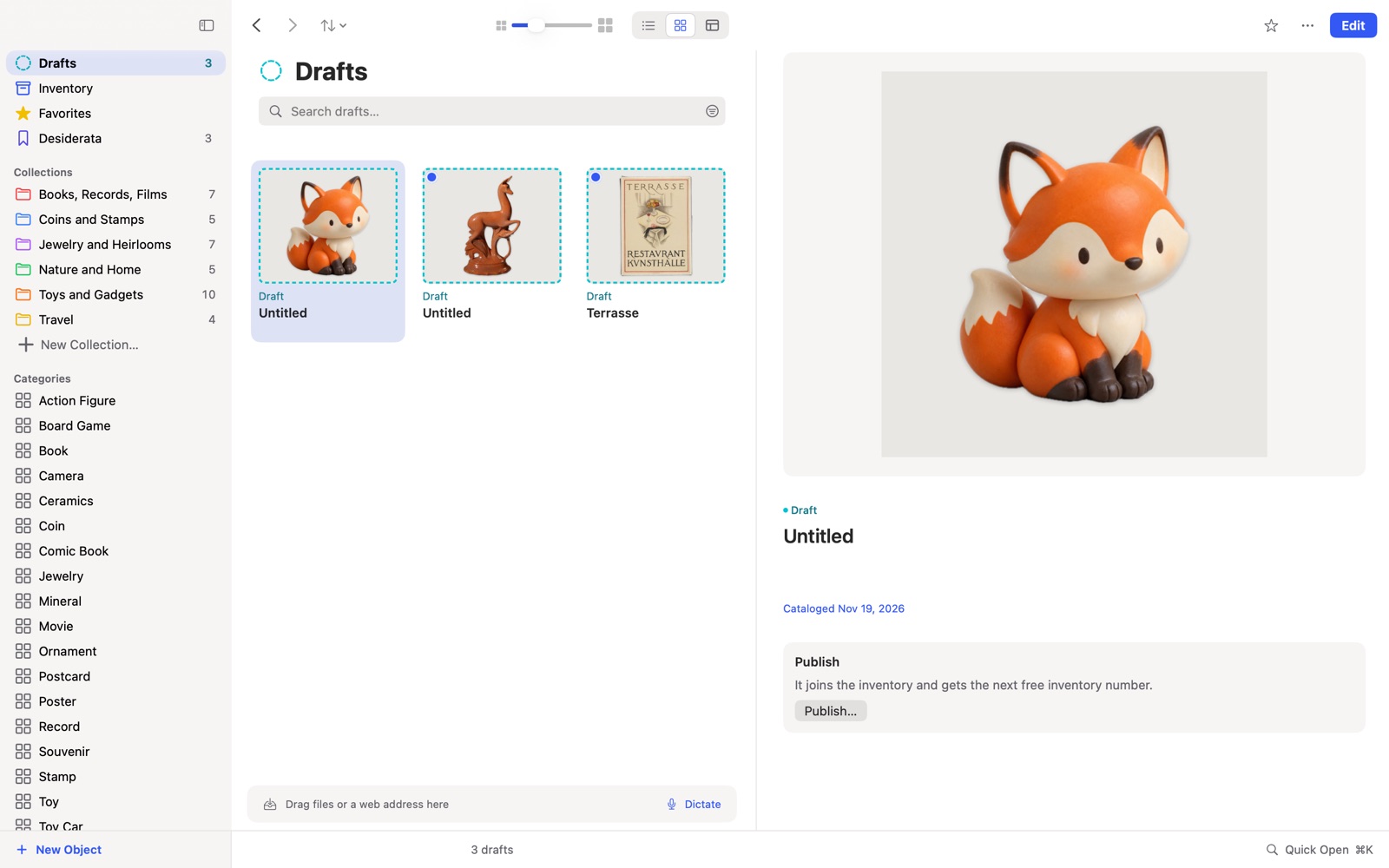
5Add the photos
Pictures do not come from the table. If a column holds image addresses, “Load images from the web” fetches them at the press of a button.
Frequently asked questions
What about columns DAS MUSEUM does not know? They are not lost. They are kept word for word under “More details from the import”.
Does this work on the iPhone too? DAS MUSEUM opens the file on iPhone, iPad and Mac.
Related: All ways to switch, Excel or Numbers
CatalogIt is a trademark of its owner. DAS MUSEUM is not affiliated with this provider.